-
·
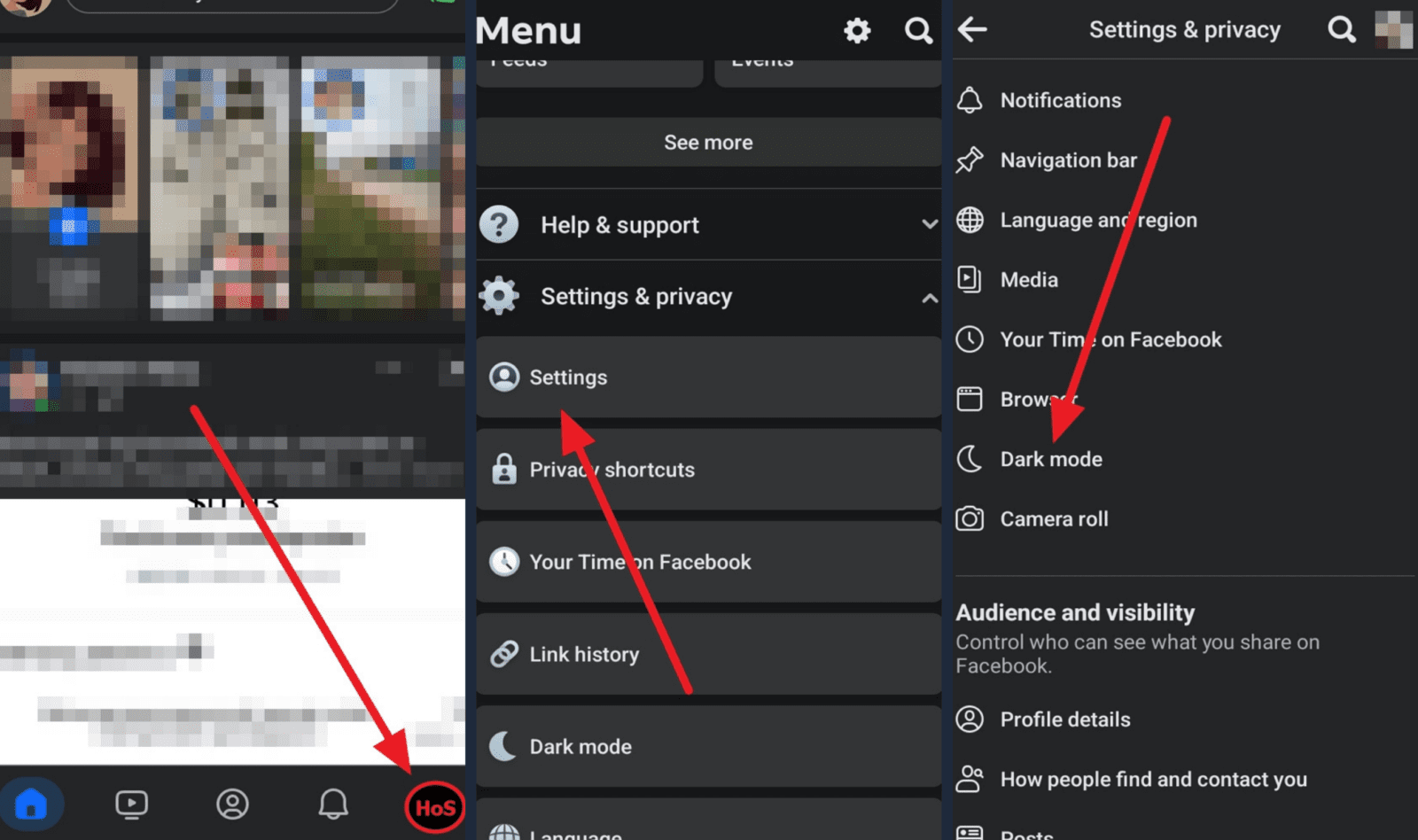
6 Steps to Activate Dark Mode on Facebook Mobile
Facebook’s dark mode feature allows you to switch the Facebook app to a darker color theme. Enabling dark mode can make using the Facebook app easier on your eyes, especially at night. It replaces Facebook’s usual bright white background with black and dark gray shades. In this article, I’ll walk you through the simple steps…
-

·
4 Steps to Hide WhatsApp Chat Without Archive in Android
WhatsApp is a popular messaging application used by millions of people worldwide. However, sometimes you may want to keep certain conversations private and hidden from prying eyes. While WhatsApp does not offer a direct way to hide chats without archiving them, there are alternative methods to achieve this. Hiding WhatsApp Chats Without Archive – Using…
-

·
4 Steps to Update Google Chrome on Your Phone
Google Chrome is one of the most popular mobile browsers, known for its speed, simplicity, and integration with Google services. However, like all software, Chrome needs regular updates to fix bugs, patch security vulnerabilities, and add new capabilities. It’s recommended to keep Chrome updated to the latest version on your Android phone. Thankfully, updating Chrome…
-

·
6 Steps to View Story Reshares on Instagram App
Viewing who has reshared your Instagram stories or posts can be useful to see how your content is resonating with your audience. Instagram makes this easy by providing options to see current public story reshares. Here are the step-by-step instructions to view story reshares on the Instagram app. 1. Open the Instagram app on your…
-
·
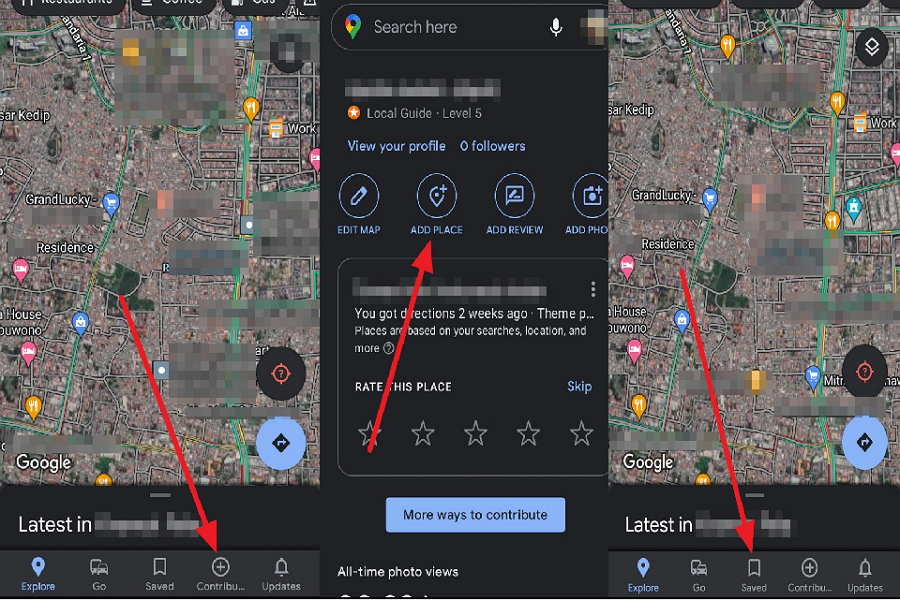
4 Steps to Set Your Location in Google Maps App
Setting your location in the Google Maps app allows you to access useful features like getting directions, finding nearby places, and sharing your real-time location with others. By saving important addresses like your home and work locations or adding missing places, you can customize Google Maps to better meet your needs. This article will walk…
-

·
6 Steps to Get Animated Stickers on Whatsapp Android
Animated stickers have become a popular way to add a touch of fun and expressiveness to our conversations on WhatsApp. They are more engaging than regular stickers and emojis, and can make your chats more lively and interesting. This article will guide you through the steps to get animated stickers on your WhatsApp for Android.…
-
·
6 Steps to Use Instagram Camera Without Posting
Instagram has become a staple in social media, renowned not only for sharing moments but also for its robust camera and editing features. However, there may be times when you want to use the Instagram camera and its filters without posting the photo. Whether you aim to perfect your photography skills or simply wish to…
-
·
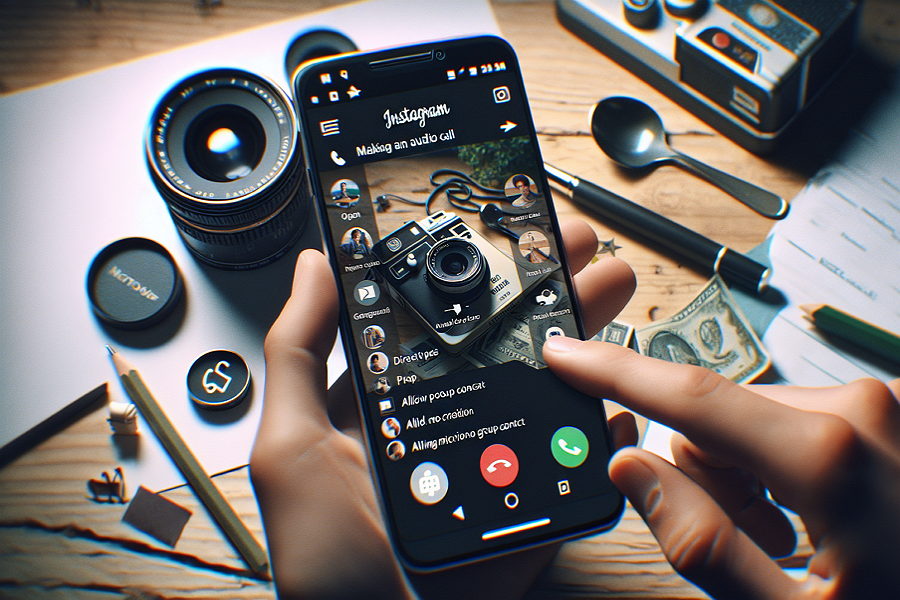
5 Steps to Make an Audio Call on Instagram for Android
Originally launched as a photo-sharing platform in 2010, Instagram has evolved into a multifaceted social media application with a variety of features including audio and video calling capabilities. This article provides step-by-step instructions on how to make an audio call using Instagram on an Android device. Follow the guide below to learn how to initiate…
-

·
6 Steps to Undo Not Interested on Instagram for Android
Instagram’s Not Interested feature allows you to remove posts from your feed that you don’t want to see. This helps keep your feed clean and tailored to your interests. However, you may accidentally tap “Not Interested” on a post you actually want to see. Thankfully, Instagram makes it easy to undo this action. Here are…
-

·
5 Steps to Change Language on a Vivo Android Phone
If you have accidentally set your Vivo phone to display in Chinese or another language that you don’t understand, don’t panic. It’s easy to change the language back to one you’re familiar with, such as English. Changing the system language will translate all the text across the entire Android operating system. There are a few…