
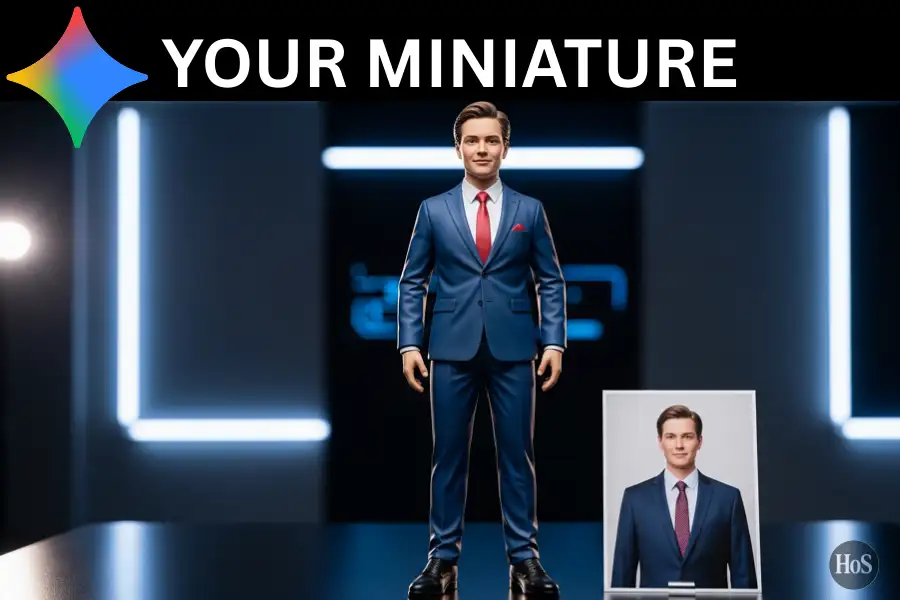
Ever scrolled through social media and seen those super cool miniature figurine versions of people’s photos? You know, the ones that look like tiny collectible toys sitting on a desk with fancy packaging and everything? Yeah, I was obsessed too. The good news is you don’t need to be a 3D artist or spend hours learning complicated software to create these. Google’s Gemini AI (nicknamed “Nano Banana” by the internet) can transform your personal photos into these adorable miniatures in literally seconds, and I’m gonna show you exactly how to do it.
I tried this myself with a bunch of my photos, and honestly, the results blew my mind 🤯. What used to require expensive 3D modeling skills can now be done for free right from your browser or phone. Whether you want to turn yourself into a collectible action figure, immortalize your pet as a tiny toy, or just create something fun to share online, this technique works like magic. The best part? You just need a photo and the right prompt.
In this guide, I’m walking you through the entire process from start to finish. You’ll learn how to access Gemini AI, upload your photo, use the perfect prompts to get professional results, and even some tips to make your miniatures look extra polished. Trust me, once you see how easy this is, you’ll want to turn every photo you own into a miniature masterpiece.
What Makes Gemini AI Perfect for Creating Miniature Photos
Gemini AI isn’t just another image generator. Google built this thing with some serious power, specifically the Gemini 2.5 Flash Image model that understands exactly what you want when you ask it to turn a photo into a miniature figurine. When I first discovered this feature, I was skeptical because most AI tools either completely change how people look or create weird, unrealistic results. But Gemini actually preserves the likeness of the person in your photo while transforming them into a hyper-realistic collectible figure.
What sets Gemini apart is how it handles the details. When you upload a photo and use the right prompt, it doesn’t just slap a filter on your image. It actually reimagines your photo as a physical 3D figurine sitting in a real environment, complete with a transparent acrylic base, proper lighting, and even creates a whole scene with packaging boxes and computer screens showing the “modeling process.” The realism is what makes these images go viral because they genuinely look like photos of actual collectible figures you could buy in a store.
The Nano Banana trend exploded because Gemini makes this accessible to everyone. You don’t need a fancy computer, design experience, or any special software installed. Just open Gemini in your browser, upload a photo, paste a prompt, and boom. Within seconds, you’ve got a professionally styled miniature that looks like it belongs in a collector’s display case. I’ve made dozens of these now, and each time I’m impressed by how it captures facial features, clothing details, and even recreates complex poses from the original photo.
Steps to Create Your Miniature Figurine in Gemini AI
-
Open your browser and go to gemini.google.com or launch the Gemini app on your phone.
-
Look for the Tools icon and tap it, then select Create image.
-
Click plus icon (+) and select Upload files, then select the photo you want to transform into a miniature (make sure it’s a clear photo where the person is visible).
-
Paste this prompt into the text box, “Using the model, create a 1/7 scale commercialized figurine of the characters in the picture, in a realistic style, in a real environment. The figurine is placed on a computer desk. The figurine has a round transparent acrylic base, with no text on the base. The content on the computer screen is the Zbrush modeling process of this figurine. Next to the computer screen is a BANDAI-style toy packaging box printed with the original artwork. The packaging features two-dimensional flat illustrations.”
-
Hit the send button (usually an arrow icon pointing right) and wait a few seconds while Gemini processes your request.
-
Once the image appears, check if you’re happy with the result or if you want to refine it with additional prompts like “make the figurine sharper” or “improve the lighting.”
-
Download your miniature image by clicking the download icon in the top right corner of the generated photo.
-
Save it to your device and share it on social media to join the viral trend 📸.
Tips for Getting Better Miniature Results
The quality of your original photo matters way more than you might think. I learned this the hard way after trying to use blurry selfies and getting mediocre results. For the best miniature figurines, start with a well-lit photo where the person’s face is clearly visible and not too dark or overexposed. Natural lighting works great, and make sure the subject isn’t too far from the camera. Close-up or medium shots tend to work better than full-body photos taken from far away, though both can work if the image is sharp enough.
You can totally customize the prompt to fit your vision. The default prompt creates that classic desk scene with the computer screen and packaging box, which is awesome, but don’t be afraid to experiment. Try changing “computer desk” to “art studio” or “personal workspace” to create different vibes. You can also specify things like “dramatic lighting” or “cinematic style” to change the mood. I’ve had success asking Gemini to place the figurine in creative settings like “surrounded by noodles” or “in a fantasy landscape” for more playful, surreal results 🎨.
If your first attempt isn’t perfect, keep refining. Gemini lets you chat with it, so after the first image generates, you can type follow-up instructions like “make the base more transparent,” “sharpen the details on the face,” or “remove the packaging box.” Sometimes it takes two or three tries to nail exactly what you want, and that’s totally normal. I usually generate a few variations and pick the one that looks the cleanest and most realistic.
Conclusion
Turning your photos into miniature figurines with Gemini AI is honestly one of the coolest creative trends I’ve played with in a while. It’s fast, it’s free, and the results genuinely look professional enough to make your friends think you hired a 3D artist. Whether you’re doing it for fun, to create unique social media content, or just to see yourself as a collectible toy, Gemini makes the whole process incredibly simple ✨.
So grab your favorite photos and start experimenting. The beauty of this tool is that there’s no limit to how many miniatures you can create, and each one comes out slightly different depending on your prompt and photo. Have fun with it, get creative, and don’t forget to share your creations online because trust me, people love seeing these!
FAQs
Is Gemini AI free to use for making miniature photos?
Yes, Google Gemini is completely free to use. You just need a Google account to access it at gemini.google.com or through the mobile app, and you can generate as many miniature figurine images as you want without paying anything.
Can I use group photos or does it only work with single people?
You can absolutely use group photos. The AI will create miniature figurines of all the people in your photo. Just make sure everyone’s faces are clearly visible for the best results, and the prompt will adapt to create multiple figures in the scene.
How long does it take to generate a miniature photo?
Super quick, usually between 10 to 30 seconds depending on server load. I’ve noticed it’s almost instant most of the time, which is wild considering how detailed the final images are. Way faster than any manual 3D modeling would ever be 🚀.
Can I turn the miniature images into videos too?
Yes, you can take it further by using video generation tools. Some people use Gemini’s Veo feature or other apps like Flow to animate their miniature figurines. You’d generate the image first in Gemini, then upload it to a video tool with a prompt to add movement or create a rotating display effect.
What if the AI doesn’t capture my likeness accurately?
Try using a different photo with better lighting and a clearer view of your face. The AI works best with high-quality source images. You can also add refinement prompts after the first generation like “make the facial features more accurate to the reference photo” or “adjust the face to match the original image better” to improve the likeness.