
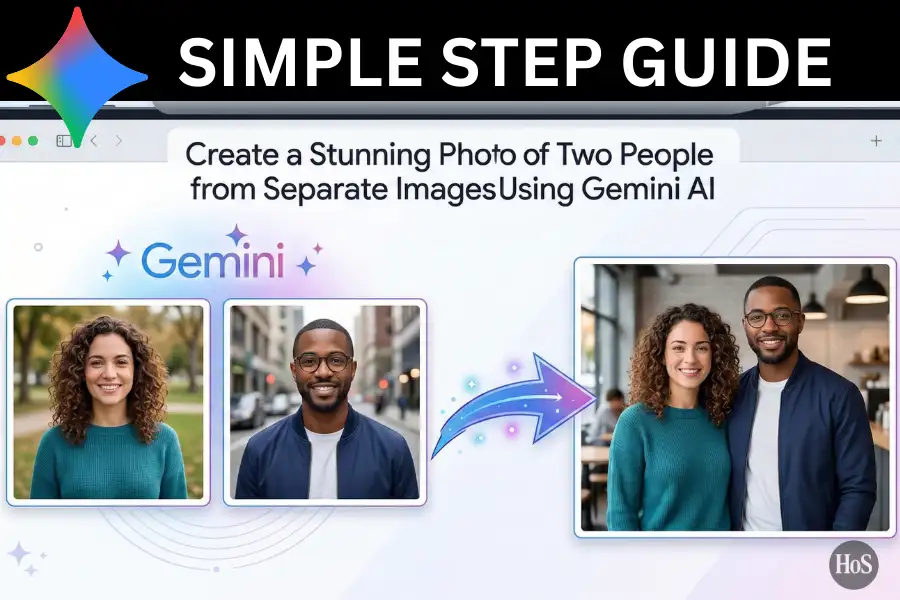
Ever had two awesome photos of different people and wished you could just put them together into one perfect shot? I’ve been there. Maybe you missed getting a group photo at an event, or someone important wasn’t around when the camera came out. It’s frustrating when you’ve got great individual shots but no way to put them side by side or together in the same scene.
That’s exactly why I started playing around with Google Gemini AI, and honestly? It changed the game for me. 🎉 Gemini’s image model (codenamed Nano Banana) can take two completely separate photos of different people and blend them into one natural-looking, realistic image. No Photoshop skills needed, no complex software, just a browser and the right prompt.
In this post, I’m going to walk you through the exact steps I use to create stunning combined photos using Gemini AI. Whether you want a couple portrait, a family photo, or just a fun creative image, this method works smoothly and the results look surprisingly real. Let’s get into it. 🔥
Why Google Gemini AI Works So Well for Combining Photos
Gemini AI’s image model, Nano Banana (built on Gemini 2.5 Flash Image), isn’t just a regular image generator. It does multi-image fusion, meaning it reads both uploaded photos and pulls together the faces, lighting, and details into one unified scene. What makes it different from older AI tools is that it focuses on keeping character consistency, so faces look like the actual people in your photos, not some random AI-generated strangers.
The reason the results look so realistic is that Gemini also adjusts lighting and skin tone automatically based on the scene you describe in your prompt. It uses its world knowledge to understand context, so if you say “garden background with sunlight,” it knows exactly how natural light should fall on two people standing in a garden. That level of image understanding is what makes this tool stand out from basic photo mergers. 🌟
What You Need Before You Start Combining Photos in Gemini AI
Before jumping in, you want to set yourself up for the best results. The quality of your input photos directly affects how good the final image looks. Here’s what to keep in mind before you start.
Pick photos where faces are clear, well-lit, and facing forward. Blurry or dark face shots will confuse the AI and give you a messy result. Also, having both photos at roughly similar lighting conditions helps Gemini blend them more naturally into one scene. 📸
How to Combine Two People’s Photos into One Image Using Gemini AI
-
Open your browser and go to gemini.google.com, then sign in with your Google account.
-
Start a new chat by clicking the New Chat option from the sidebar or top menu.
-
Click the + (plus) icon in the compose field at the bottom of the screen.
-
Select Upload Files or Gallery from the menu that pops up.
-
Choose and upload the first photo (Person A) from your device.
-
Click the + icon again and upload the second photo (Person B) the same way.
-
Once both photos are uploaded, type a detailed prompt describing the combined image you want, for example, “Enhanced, 4K HD, realistic photo of a couple smiling and looking at each other in a garden with beautiful flowers in the background. Keep their faces exactly the same as in the uploaded photos.”
-
Hit the Send button and wait a few seconds for Gemini to generate the combined image.
-
If the result isn’t quite right, refine your prompt by adding details like lighting, pose, or background and regenerate.
-
Once you’re happy with the result, download the image directly to your device. 🎊
How to Write the Perfect Prompt for a Natural-Looking Combined Photo
Your prompt is the most important part of this whole process. A weak, vague prompt will give you a weird-looking result, while a detailed one gets you something that looks real and polished. I always describe the scene like I’m briefing a photographer, specific background, lighting style, mood, and pose.
The key line you should always include in your prompt is something like “Keep their faces exactly the same as in the uploaded photos, no alterations at all.” This tells Gemini to lock in the actual faces from your reference images instead of creating new ones. You can also add style keywords like “Polaroid-style,” “natural candid vibe,” or “4K HD realistic” to shape the overall look and feel of the final image. 💡
Conclusion
Combining two people from different photos used to take hours in Photoshop and required serious editing skills. Now, with Gemini AI’s Nano Banana model, you can do it in under a minute with just a good prompt and two photo uploads. It’s one of those tools that genuinely makes creative work faster and more accessible for everyone. 🙌
The quality you can get from Gemini right now is impressive, especially when you dial in your prompt with the right details. Give it a try with your own photos, you might be surprised at how good the results look!
FAQs
Is Google Gemini AI free to use for combining photos?
Yes, you can use Gemini AI for free at gemini.google.com with a Google account, though some advanced features may require a Google One or Gemini Advanced subscription.
Will Gemini keep the real faces of the people in my photos?
Yes, as long as you include a line in your prompt like “Keep their faces exactly the same as in the uploaded photos”, Gemini will do its best to preserve the original faces from your uploaded images.
What kind of photos work best for this method?
Clear, well-lit photos where faces are visible and facing forward work best. Avoid blurry, dark, or heavily filtered photos since they can affect the quality of the final output.
Can I combine more than two people’s photos at once?
Yes, Gemini supports uploading multiple images, so you can try combining more than two people, though results may vary depending on photo quality and how complex the prompt is.
Can I use this on my phone or only on a desktop?
You can use Gemini AI on both mobile and desktop. On mobile, you can access it through the Gemini app or via a browser, and the upload process works the same way. 📱