
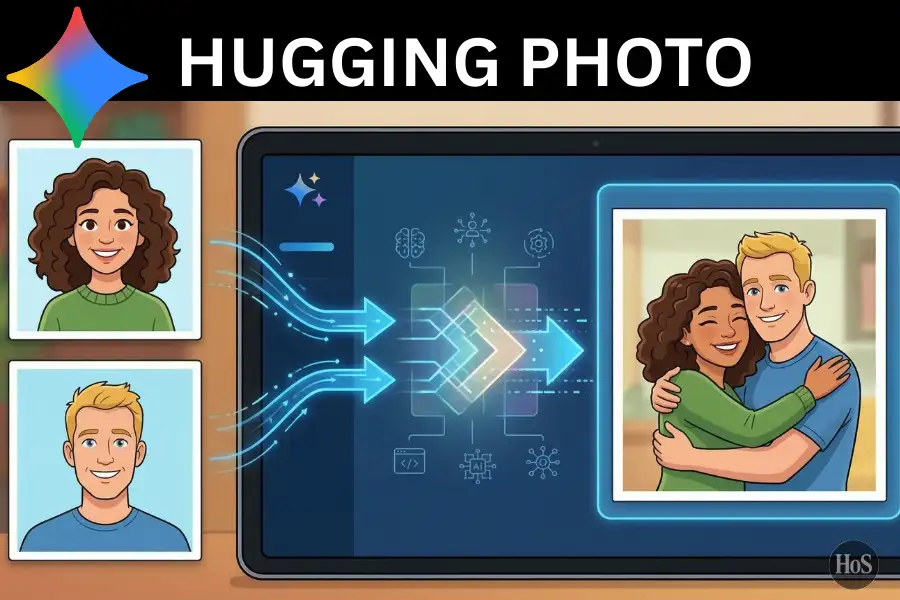
Hugging Photo? Have you ever had two photos of different people taken at totally different times and places, and just wished you could put them together into one real-looking shot? Maybe it’s you and a childhood friend who moved away, a photo of you and someone you’ve lost, or just a fun creative project. Before AI came along, this kind of edit needed serious Photoshop skills. Now, honestly, anyone can do it. 🙌
Gemini AI, Google’s image generation tool powered by the Nano Banana model, lets you upload two separate photos and blend them into one natural-looking scene where both people appear to be hugging. The output doesn’t just look copy-pasted. Done with the right approach, it actually looks like a real photo. I’ve tested this multiple times, and I can tell you the difference between a lazy prompt and a detailed one is massive.
In this post, I’m walking you through the whole thing from beginning to end. I’ll cover how to prep your photos, how to write a prompt that actually works, and the exact steps to follow inside Gemini AI. By the time you finish reading this, you’ll have everything you need to make it happen. 📸
Why Your Photo Quality Before Uploading Changes Everything
Before you even open Gemini, the two photos you choose are going to make or break your result. Gemini AI is powerful, but it can’t fix blurry faces, strange angles, or massive lighting differences between two images. The closer the two photos match in terms of lighting direction, image sharpness, and overall quality, the more convincing the final blended image will look.
The best input photos are ones with clear, well-lit faces, front-facing or slightly angled, no sunglasses, no heavy filters. You want the AI to clearly read both people’s facial features so it can keep them accurate when building the new scene. I’ve personally gotten much better results from clean selfies with natural lighting than from low-resolution or heavily processed shots.
Also think about file size and format. JPG and PNG both work well. Try to use photos that are at least 800×800 pixels each. If one photo is super high resolution and the other is tiny, the output might look uneven where one person appears crisp and the other looks soft or slightly off. 🖼️
What a Strong Prompt for a Hugging Photo Actually Looks Like
The prompt is the most important part of this whole process. A lot of people type something like “merge these two photos” and then get frustrated when the faces look wrong or the whole thing looks fake. Gemini’s Nano Banana model responds much better to detailed, scene-based descriptions that spell out exactly what you want it to do with the faces, the pose, the lighting, and the visual style.
A solid prompt for a hugging photo covers three main things. It tells the AI to keep the faces completely unchanged, which is the single most critical instruction. It describes the type of hug and who is positioned where. And it defines the overall visual vibe, whether that’s a candid real-life look, a soft studio style, a Polaroid effect, or an outdoor natural shot.
Here’s an example of a basic prompt structure you can adapt for your own use. Write something like “Create a photorealistic image of these two people sharing a warm hug. Keep both faces exactly as they appear in the uploaded photos without any changes to facial features, skin tone, or hair. Natural soft lighting, realistic body posture, no cartoon effects, no distortion, no stylization.” That level of detail is what separates a good output from a bad one. ✍️
Step-by-Step Process to Merge Two Photos into a Hugging Scene🤗
Here’s the full process, exactly as I’d do it myself.
-
Open your browser and go to gemini.google.com, or download the Gemini app on Android or iOS.
-
Log in using your Google account if you aren’t already signed in.
-
In the chat input area at the bottom, click the plus (+) icon to access the file upload option.
-
Select and upload the first photo (Person A) from your device.
-
Upload the second photo (Person B) the same way so both images sit in the same message field.
-
Type your detailed prompt in the text box. Example prompt: “Create a photorealistic image of these two people sharing a warm, natural hug. STRICTLY do not change either person’s face, keep all facial features, skin tone, hair, and identity exactly as shown in the uploaded photos. The taller person stands behind and gently wraps their arms around the other. Soft warm indoor lighting, relaxed and natural posture, slightly blurred background. Photorealistic photography style, no filters, no illustration, no distortion.”
-
Click the send button and give Gemini about 10 to 30 seconds to generate the image.
-
If one face looks off or changed, type a follow-up prompt like “Regenerate this but strictly do not alter either person’s face. Faces must match the original uploaded photos exactly.”
-
For a Polaroid-style output, adjust your prompt. Example: “Make this look like a Polaroid photo taken in a dark room with even camera flash lighting. Add a slight motion blur effect. STRICTLY do not change the faces. Replace the background with a white curtain. The two people are hugging.”
-
Once the result looks good, click the download button below the image or long-press on mobile to save it to your device.
Conclusion
Getting a realistic hugging photo from two separate shots in Gemini AI is genuinely doable, even if you’ve never used an AI image tool before. The whole thing comes down to two things: clean input photos and a prompt that’s specific enough to actually guide the AI. Give it vague instructions and you get a weird result. Give it detailed ones and you get something that looks like a real photo. 🎉
If the first output isn’t quite right, don’t scrap it. Gemini keeps track of the conversation, so you can tell it exactly what to fix and regenerate from there. Keep your prompt focused on face preservation and scene detail, and you’ll get there. Have fun with it.
FAQs
Does Gemini AI Keep Both Faces Accurate When Merging Two Photos?
It does a solid job when you explicitly tell it to. Always include a line in your prompt like “STRICTLY do not change the faces”, that instruction makes a real difference in how well it preserves each person’s look.
Can I Use Gemini AI on My Phone to Do This?
Yes, the Gemini app is available for both Android and iOS. The process is the same as on desktop. Just tap the plus icon in the chat to upload your photos before typing the prompt.
What Should I Do If One Person’s Face Looks Wrong in the Output?
Just send a follow-up message in the same chat saying something like “Regenerate but keep [Person A or B]’s face exactly as in the original photo.” Gemini can adjust based on your feedback without you needing to start a new session.
Do I Need a Paid Gemini Plan to Generate Hugging Photos?
The free version of Gemini gives you access to basic image generation. For higher quality outputs and more generations, Gemini Advanced under Google One offers better results, but the free tier works well for casual use.
Is It Safe to Upload Personal Photos to Gemini AI?
Google does collect data from interactions, so it’s smart to read their privacy policy before uploading sensitive or personal photos. For experimenting, using publicly available or non-sensitive images is always the safer option.