
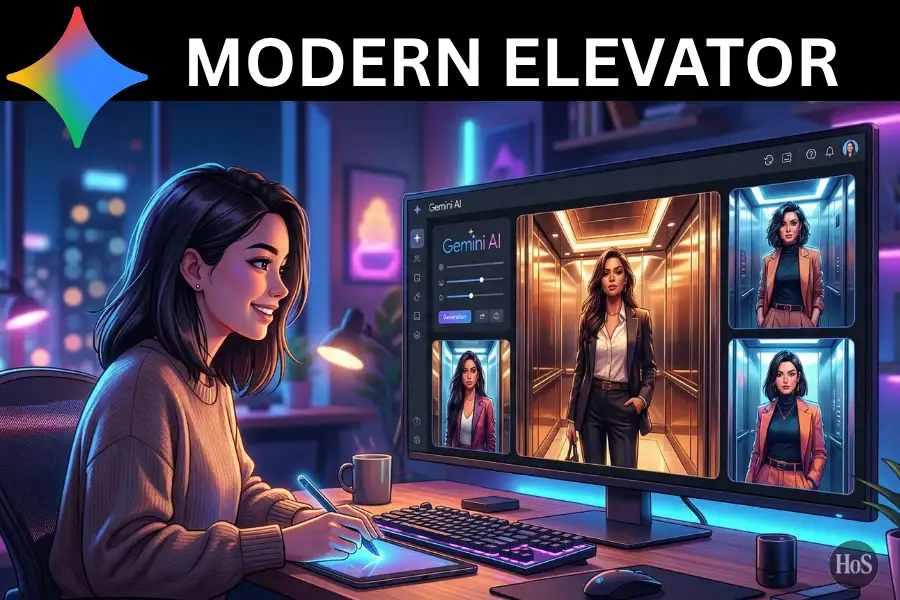
If you’ve been scrolling through Instagram or TikTok lately, you’ve probably spotted those cinematic elevator portraits that look like a still from a short film. The high-angle, security-camera vibe gives a regular selfie a completely different energy, and people can’t get enough of it 📸 The trend has been viral since mid-2025, and it’s still going strong because the results genuinely look good.
The interesting part is that you don’t need an actual elevator, a tripod, or a photographer to pull this off. All it takes is Gemini AI, a decent photo of yourself, and the right prompt. I tried this myself and spent way too long tweaking prompts just to get that perfect cinematic shot, so I’m sharing what actually works here.
This guide walks you through exactly how to create your own elevator portrait using Gemini AI’s image generation feature called Nano Banana. Whether you’re making content, testing AI tools, or just curious what you’d look like in a moody elevator scene, this will get you there fast 🎯
Why the Elevator Portrait Trend Has That Cinematic Look
The elevator portrait trend works so well because of the angle. Most photos are shot at eye level, which is boring and predictable. The overhead angle that mimics a security camera flips that completely. Your face takes on a slightly dramatic look, and the elevator setting, with its metal panels, ambient lighting, and closed doors, adds this raw urban aesthetic that feels intentional.
What makes Gemini AI great for this is how well it understands spatial context. When you describe the scene with enough detail, the AI places the subject naturally inside the elevator without making it look fake or weirdly photoshopped. That’s why this trend works better with Gemini compared to other tools that just slap a background behind a cutout.
The style also pulls from a long history of security-camera aesthetics in photography and film. There’s something interesting about the idea that an “unguarded” camera angle feels more real and more intimate than a posed portrait. Gemini AI just makes it easy to recreate that vibe on demand 🔥
What to Prepare Before You Start the Process
Before jumping into the steps, you’ll need a few things in place. First, a Google account to access Gemini AI at gemini.google.com. The Nano Banana image generation feature is available on the free plan, though a Google AI Pro subscription unlocks Nano Banana Pro, which delivers sharper, more detailed results and extra regeneration attempts 💡
Your reference photo matters more than you’d think. A clear, front-facing shot with good lighting works best because the AI needs enough facial detail to keep your features consistent in the output. Avoid dark, blurry, or heavily filtered photos since those confuse the model and you’ll end up with a result that barely looks like you.
Your prompt quality directly determines the output quality. A vague prompt gives a generic elevator background with a random person in it. A detailed prompt that specifies the camera angle, elevator style, lighting mood, and subject details gives you something that looks like it was actually planned. I’ve got a ready-to-use example prompt included in the steps below, so you don’t need to start from scratch.
Step-by-Step Guide to Create Elevator Portraits with Gemini AI
-
Open your browser and head to gemini.google.com, then sign in with your Google account.
-
Click the tools menu at the bottom of the chat and select the 🍌 “Create images” option to activate the Nano Banana feature.
-
Pick your model from the model menu, “Fast” works for a quick draft, while “Pro” and “Thinking” is better if you want sharper, more detailed output.
-
Click the image upload button and attach a clear, well-lit, front-facing photo of yourself.
-
Type your prompt in the text field, here’s a solid example prompt to start with and adjust to fit your style 👇 “A photorealistic portrait of a person standing inside a sleek modern elevator, shot from a high top-down security camera angle. The elevator has brushed metal walls, soft cool ambient lighting, and closed doors behind the subject. The subject looks upward toward the camera with a calm, neutral expression. Cinematic quality, high detail, natural skin texture, no face retouching.”
-
Hit the generate button and wait around 10 to 30 seconds for Gemini AI to process the image.
-
Review the result carefully, check the camera angle, lighting, and whether your facial features look accurate.
-
If something’s off, type a follow-up message like “make the elevator walls darker” or “shift the angle more top-down” to refine the image without starting over.
-
Once the result looks right, click the download button to save the image to your device.
-
Post it on Instagram, TikTok, or wherever you create content, and enjoy the comments asking how you got that shot 😄
Conclusion
Creating elevator portraits with Gemini AI is genuinely one of the more fun things you can do with an AI image tool right now. With a clear photo and a well-written prompt, the output looks way more polished than most people expect from a free browser-based tool.
The Nano Banana model keeps improving with every Gemini update, so the results will only get better over time. Head to gemini.google.com, test out the prompt, tweak it to match your vibe, and make the elevator aesthetic yours 🚀
FAQs
Do I need a paid Gemini plan to use the elevator portrait feature?
Nope, the basic Nano Banana feature is free at gemini.google.com. A paid Google AI Pro plan just gives you access to the Pro model with better image quality and more regeneration attempts.
Can I upload a group photo to make a two-person elevator portrait?
Yes, you can. Just upload the photo and describe both people in your prompt so Gemini AI knows how many subjects to include and how to position them in the scene.
Why does the generated portrait not look like me?
This usually happens when the uploaded photo is low quality, blurry, or has bad lighting. Use a clear, front-facing photo and add “preserve the subject’s natural facial features” in your prompt to help the AI stay accurate.
How long does it take to generate one elevator portrait?
It typically takes between 10 to 30 seconds. The “Fast” model processes quicker, while the “Pro” model takes a bit longer but gives you a noticeably sharper result.
Can I keep editing the image after it’s generated?
Absolutely. Gemini AI lets you send follow-up prompts to adjust details like lighting, background, pose, or angle. You can keep refining the image in the same conversation without generating a whole new one from scratch.