
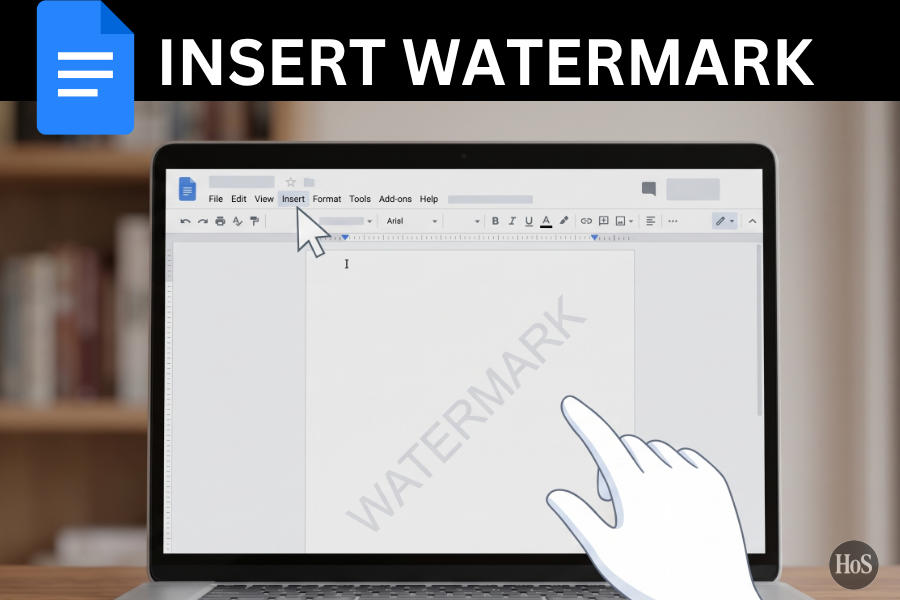
Ever sent out a document and worried someone might try to pass it off as their own work? I have, and it is totally not a good feeling. Whether it is a draft of an important proposal or a confidential business report, sometimes you just need to make sure everyone knows exactly what they are looking at and who it belongs to.
Adding a watermark is the perfect way to do this. It is like putting your stamp on something without messing up the actual text you worked so hard on. A watermark sits quietly in the background, making it crystal clear that this document is a “Draft” or strictly “Confidential.” You can even use your company logo to make it look super professional.
The awesome news is that adding a watermark in Google Docs is actually a breeze now. You do not need to use any complicated graphic design software or weird workarounds anymore. In just a few clicks, you can add either text or an image right behind your words. Let me show you exactly how to do it.
How to Add an Image Watermark 🖼️
Adding an image watermark is super useful when you want to brand your document with a logo or a specific design. It gives your document a very professional vibe and makes it instantly recognizable. You can use almost any image file you have saved. The image will appear automatically behind your text on every single page of your document.
- Open your Google Doc on your computer and make sure it is in pages format.
- Click on the “Insert” menu right at the top of the screen.
- Scroll down the list and select “Page elements”, then click “Watermark”.
- A new panel will open on the right side, so click the “Image” tab.
- Click the “Select image” box right in the middle of that panel.
- Choose your image from Google Drive, your computer, or even your camera.
- Once uploaded, you can adjust the scale and choose if you want it faded.
- Click the blue “Done” button at the bottom of the panel.
How to Add a Text Watermark 🔤
Sometimes you do not need a fancy logo, you just need a big bold word like “DRAFT” across the page. This is where text watermarks come in handy. It is the quickest way to show the status or the confidentiality level of your document. You have total control over what the text says and how it looks.
- Open up the Google Doc you want to put a watermark on.
- Head up to the top menu and click on “Insert”.
- Find and click on “Page elements”, then tap “Watermark” from the drop-down options.
- In the side panel that pops up on the right, click on the “Text” tab.
- Type whatever word you want into the “Text” box provided.
- Change up the font, size, and transparency using the formatting options.
- Decide if you want the text to sit horizontally or diagonally across the page.
- Hit that blue “Done” button to save your new text watermark.
How to Edit or Remove a Watermark ✂️
Things change, and sometimes you need to get rid of a watermark or change what it says. Maybe that “Draft” is finally the final version! Google Docs makes it just as easy to take a watermark off as it was to put it on. You can tweak the settings or just delete it completely.
If you just need to make a quick change, you can get back to the watermark panel easily. Just right-click right on the watermark itself. Then, choose “Select watermark” and you can edit it right from there. If you want to delete it entirely, open that same watermark panel from the “Insert” menu. Right at the very bottom of the panel, you will see a button that says “Remove watermark”. Just click that, and it is gone forever!
Wrapping It Up 🎉
So there you have it, folks! Adding a watermark to your Google Docs is a simple but super effective way to protect your work and look professional doing it. It only takes a few seconds but can save you a ton of headaches down the road.
Next time you are working on something important, try adding a quick watermark. It is a neat little trick to have up your sleeve. Now go forth and watermark those documents with confidence!
FAQs
Can I add a watermark using the Google Docs app on my phone?
No, unfortunately, you can’t add watermarks using the mobile app. You need to use a computer to insert them.
Why can’t I see my watermark?
Your document might be in “pageless” format. Watermarks only show up if your document is set to the standard pages format.
Can I add a watermark to just one page?
No, the built-in watermark tool automatically applies the watermark to every single page in your document.
Can I use a color image for a watermark?
Yes, absolutely! Just make sure to check the “Faded” box so the image does not make your text hard to read.