
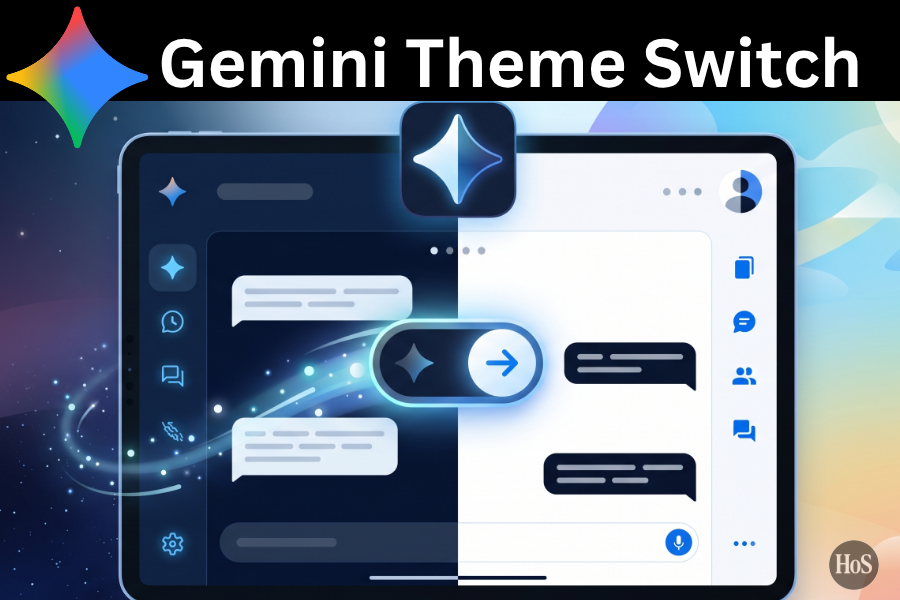
If you hang out in Gemini AI a lot, the default bright screen can start to feel a bit intense, especially at night when your eyes already feel cooked from everything else you do online. Changing the theme to dark or light is a simple tweak that makes a big difference in how comfy the app feels while you type, read, or brainstorm ideas. 😎
In this guide I will walk you through how I switch between dark theme, light theme, and sometimes just let Gemini follow my device system settings. The cool part is you can do this on both desktop and mobile, and once you know where the theme options live it takes only a few seconds. I will keep it simple so you can follow along even if you are brand new to Gemini AI.
I will cover how the theme settings work on the web version, how they behave inside the mobile apps, and then give you a clear step by step walkthrough you can reuse anytime. By the end you can flip between dark and light like a pro and set things up so Gemini matches how you like the rest of your screen to look, whether that is clean bright white or low key dark mode for late night sessions. 🌙
How Gemini AI Theme Settings Work On Desktop Web Version For Dark And Light Modes
On the desktop web version Gemini gives you a direct theme control inside its settings so you can choose dark, light, or let it follow your system appearance. Many users miss it at first because the theme option sits inside a small settings menu that you might ignore when you only care about typing prompts.
When I open Gemini in the browser I look for a gear icon or a settings and help label in the main interface, usually in the top bar or along the sidebar. Inside that menu there is a themes or appearance section where I see options like light, dark, and system, and switching between them updates the interface instantly with darker backgrounds or brighter white panels. Picking system tells Gemini to follow whatever theme my device or operating system is using which is handy if I want everything to change together.
How Gemini AI Theme Settings Behave On Mobile Apps And Why System Theme Matters
On mobile the Gemini app usually does not give a full theme toggle inside the app itself because it tends to follow the overall color scheme of the phone. That means if your device is already on dark mode Gemini looks dark, and if your phone uses a light theme the app shows a light interface without extra tapping.
So when I want Gemini dark or light on my phone I do not hunt inside the app menu first, I go straight to my device settings where display, accessibility, or color and motion controls live. Turning my phone dark or light there makes Gemini switch along with the rest of my apps which keeps everything consistent and saves me from bouncing between separate theme panels every time I change my mood. 📱
Steps to Change Gemini AI Theme and Switch Between Dark, Light, and System on Web and Mobile
- Open Gemini in your browser and sign in with the Google account you actually use.
- Look for the gear icon or settings and help area usually in the top bar or sidebar.
- Click settings then find the themes or appearance section inside that menu.
- Choose dark if you want a darker interface that is easier on the eyes at night.
- Choose light if you prefer a brighter clean layout for daytime or office lighting.
- Pick system if you want Gemini to automatically follow your device color scheme.
- On Android or iOS open your phone settings when using the Gemini mobile app.
- Go into display or accessibility options and find the dark theme or appearance toggle.
- Turn dark mode on to make Gemini and other apps follow a dark look across the phone.
- Turn dark mode off or pick light theme if you want Gemini and your system to stay bright.
Conclusion
Switching themes in Gemini AI is one of those tiny tweaks that quietly makes a huge difference in how long I can stay focused without my eyes feeling wrecked. On desktop I like having direct control inside Gemini to flip between dark, light, and system, while on mobile I let the app follow whatever theme my phone already uses.
Once you know that themes live in the Gemini settings on the web and inside your device settings on mobile, it becomes second nature to adjust everything based on the time of day or how sensitive your eyes feel. Try playing with both dark and light for a bit and see which one actually helps you think clearer and stay comfortable during long chat sessions. ✨
FAQs
How do I quickly switch Gemini AI to dark theme on desktop?
Open Gemini in your browser, go to settings, find the themes section, and select dark so the interface turns darker right away.
Can I make Gemini AI follow my computer system theme?
Yes you can choose the system option in the Gemini themes or appearance settings so it matches whatever your operating system uses.
Why does my Gemini mobile app change theme when I change phone settings?
The Gemini app usually follows your device color scheme so switching your phone to dark or light theme makes Gemini update automatically.
Is dark mode better for my eyes when using Gemini AI at night?
Dark mode can reduce eye strain for many people during late night sessions because it uses lower brightness and softer contrast compared to a full white screen.
Do I need to change Gemini theme separately for every Google account?
Theme settings can be tied to the account or device you use so if you switch accounts you might need to check or adjust the theme again to match your preference.