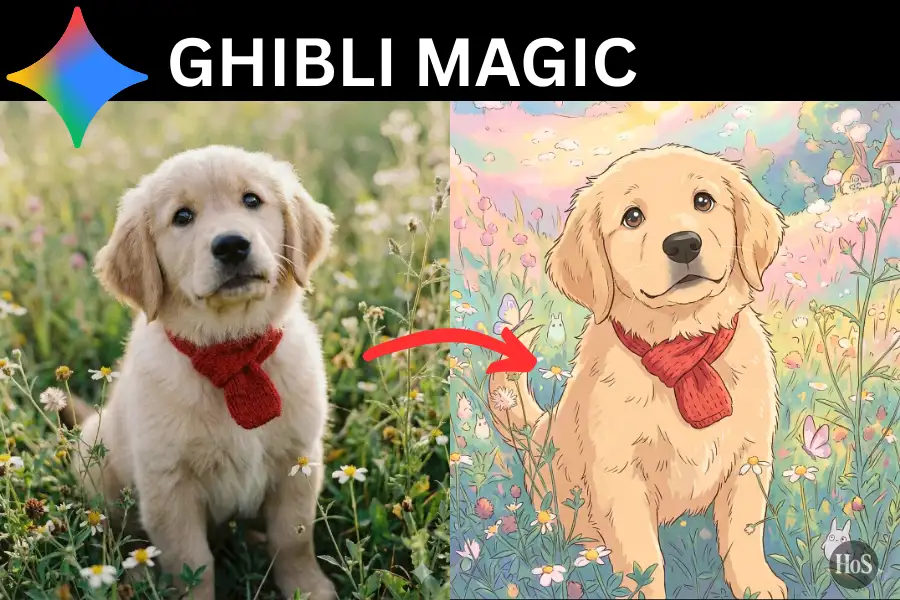
Ever scrolled through social media and seen those gorgeous photos that look straight out of a Studio Ghibli movie? You know the ones with soft pastel colors, dreamy backgrounds, and that magical whimsical vibe that makes everything look like it belongs in Spirited Away or My Neighbor Totoro. I’ve been obsessed with this trend, and the best part is you can create these stunning images yourself using Google’s Gemini AI. No artistic skills required, just your regular photos and a bit of creative prompting.
I’m going to walk you through exactly how to turn your everyday snapshots into enchanting Ghibli-style artwork. Whether it’s a selfie, your pet, a random street photo, or a landscape from your last trip, Gemini can work its AI magic and give it that signature hand-drawn anime aesthetic. The process is surprisingly simple, and I’ll share some insider tips on crafting the perfect prompts to get results that’ll make your followers stop mid-scroll. ✨
The coolest thing about using Gemini for this is that it’s free and accessible right from your Google account. Unlike some other AI tools that require subscriptions or complicated setups, Gemini makes it easy to experiment and refine your images until they’re exactly what you imagined. Plus, with the right prompt formula, you can control everything from the lighting and mood to specific Ghibli film references. Ready to bring some anime magic into your photo gallery? Let’s get started! 🌸
Why Gemini AI Works Perfectly for Studio Ghibli Transformations
Gemini has become my go-to tool for creating Ghibli-style art because it’s powered by Google’s Imagen technology, which really understands the nuances of artistic styles. When you ask it to transform something into Studio Ghibli aesthetics, it captures those signature elements like painterly textures, soft watercolor effects, and that dreamy quality that makes Hayao Miyazaki’s films so recognizable. The AI doesn’t just slap a filter on your photo but actually reimagines it with hand-drawn lines and expressive details that feel authentic.
What sets Gemini apart is how well it handles both photo transformations and creating entirely new Ghibli scenes from scratch. You can upload an existing photo and watch it turn into anime art, or you can describe a scene you’re imagining and let the AI bring it to life. I’ve tested this with everything from portraits to cityscapes, and the results consistently capture that balance between realism and fantasy that Ghibli films are famous for. The color palettes come out vibrant yet calming, and the backgrounds get those whimsical details like floating spirits, cozy villages, or magical forests that make each image feel like a movie still.
Another reason I love using Gemini is the iterative refinement process. If your first result isn’t quite right, you can type quick adjustments like “make it brighter” or “add more cherry blossoms” and the AI updates the image without starting from scratch. This makes it super easy to experiment with different moods and settings until you nail that perfect Ghibli vibe. Plus, since Gemini integrates with your Google account, you can generate images right from the web interface or even through Google Workspace apps if you’re feeling fancy. 🎭
Steps to Transform Your Photo into Ghibli Style Using Gemini
Here’s exactly how I transform my photos into Studio Ghibli artwork, broken down into simple steps that anyone can follow.
-
Open Gemini by going to gemini.google.com and sign in with your Google account.
-
Look for the attachment icon (usually a paperclip or plus symbol) and click it to upload your photo.
-
Choose a clear, high-quality image since better source photos give more detailed results.
-
In the chat box, type your transformation prompt like “Transform this photo into Studio Ghibli anime style with soft pastel colors, dreamy backgrounds, and whimsical details.”
-
Add specific elements you want like “golden hour lighting” or “cherry blossom petals floating in the air” to personalize the result.
-
Hit enter and wait a few seconds while Gemini processes your image using its AI model.
-
Review the generated Ghibli-style image and see if it matches your vision.
-
If you want changes, type refinement prompts like “make the colors warmer” or “add a magical glow around the subject” and Gemini will update it.
-
Keep adjusting with short, specific instructions until you’re happy with the final result.
-
Download your finished Ghibli masterpiece by clicking on the image and saving it to your device.
The whole process usually takes less than five minutes, and you can create multiple versions with different prompts to see which style you like best. I always save several variations because each one captures a slightly different mood! 💫
Crafting the Perfect Ghibli Prompt for Maximum Magic
The secret to getting truly stunning results lies in how you structure your prompts. I’ve experimented with dozens of variations, and I’ve learned that detailed, descriptive prompts consistently outperform generic ones. Instead of just saying “make this Ghibli style,” tell Gemini exactly what aesthetic elements you want. Mention things like “soft brush strokes,” “warm lighting,” “hand-drawn textures,” and “magical atmosphere” to guide the AI toward that authentic Studio Ghibli look. Reference specific films if you have a particular vibe in mind, like “in the style of Howl’s Moving Castle” for romantic, steampunk elements or “Kiki’s Delivery Service” for coastal town vibes.
I also recommend adding mood and environmental details to bring your images to life. Describe the time of day with phrases like “at golden hour,” “under moonlight,” or “during a misty morning.” Include weather elements such as “gentle rain,” “autumn breeze,” or “spring blossoms in the air.” These little touches help Gemini understand the emotional tone you’re going for. For example, instead of just asking for a Ghibli transformation, try something like “Transform this into a Studio Ghibli scene at twilight with warm orange skies, floating lanterns, and a nostalgic atmosphere.” The more sensory details you provide, the more the AI can capture that cinematic storytelling quality that makes Ghibli films so immersive.
Don’t forget to specify color preferences and visual textures that match the Ghibli aesthetic. Words like “pastel,” “vibrant yet calming,” “watercolor background,” and “painterly detail” help the AI nail that distinctive look. You can also mention character-specific elements if you’re transforming a portrait, such as “expressive eyes,” “gentle smile,” or “windswept hair.” If you’re creating a scene with multiple elements, break down what you want in different parts of the image, like “foreground with wildflowers, midground with a wooden cottage, background with rolling hills.” This level of detail might seem like overkill, but trust me, it makes a huge difference in the final output. The AI loves specificity! 🌟
What Makes Studio Ghibli Art Style So Special and How AI Captures It
Studio Ghibli’s visual style has captivated audiences worldwide for decades, and there’s a reason these films feel so magical and timeless. The aesthetic combines hand-drawn animation techniques with incredibly detailed backgrounds, expressive character designs, and color palettes that evoke specific emotions. Every frame feels like a painting, with soft lighting that changes throughout scenes to reflect mood shifts. There’s always a balance between realistic environmental details like wind moving through grass or water rippling and fantastical elements like forest spirits or flying castles. This blend of the ordinary and extraordinary creates that signature sense of wonder.
What really sets Ghibli apart is the attention to small, human moments and the way nature is portrayed almost as a character itself. You’ll notice how food looks impossibly delicious, how clothing moves naturally with character movements, and how backgrounds include tiny details that reward careful observation. The color grading tends toward warm, nostalgic tones with occasional pops of vibrant color to draw focus. Lighting is almost always naturalistic, whether it’s the golden glow of sunset, the soft blue of twilight, or the dappled light filtering through trees. These elements combine to create scenes that feel both cozy and epic at the same time.
When AI tools like Gemini attempt to recreate this style, they’re analyzing thousands of visual patterns from Ghibli films and learning what makes them distinctive. The AI recognizes those soft brush strokes, the specific way skies are rendered with gradient washes, the texture of grass and foliage, and the expressive yet simple character features. Modern image generation models have gotten surprisingly good at capturing these nuances, especially when you guide them with detailed prompts. While AI can’t fully replicate the soul and intentionality of hand-drawn animation, it can create images that genuinely feel like they could exist in the Ghibli universe, which is pretty amazing when you think about it. 🎨
Conclusion
Transforming your photos into Studio Ghibli art with Gemini AI is honestly one of the most fun and creative ways to reimagine your memories and everyday moments. I’ve spent countless hours playing with different prompts and watching my regular photos turn into magical anime scenes, and it never gets old. The fact that this technology is free and accessible to anyone with a Google account makes it even better.
Whether you’re creating personalized gifts, spicing up your social media feed, or just exploring your creative side, this AI tool opens up a whole new world of possibilities. So grab your favorite photos, experiment with those detailed prompts I shared, and let Gemini work its magic. Who knows, you might just create the next viral Ghibli-style image that everyone wants to know how you made! 🌈✨
FAQs
Can I use Gemini to create Ghibli images for free?
Yes! Gemini is completely free to use with your Google account. You can generate and transform as many images as you want without needing a paid subscription, making it perfect for experimenting with different styles and prompts.
What types of photos work best for Ghibli transformations?
Clear, well-lit photos with distinct subjects work best. Portraits, landscapes, pets, street scenes, and nature shots all transform beautifully. Higher resolution source images generally produce more detailed and impressive Ghibli-style results.
How long does it take for Gemini to generate a Ghibli-style image?
Usually just a few seconds to a minute. Gemini processes your photo and prompt pretty quickly, and you can immediately see the result. If you want to make adjustments, those refinements also happen in seconds.
Can I reference specific Studio Ghibli movies in my prompts?
Absolutely! Mentioning specific films like Spirited Away, Howl’s Moving Castle, or My Neighbor Totoro helps guide the AI toward particular visual aesthetics and moods. This gives you more control over the final style and atmosphere of your image.
What should I do if the first result doesn’t look right?
Just type short, specific adjustment requests like “make it brighter,” “add more trees,” “softer colors,” or “change to sunset lighting.” Gemini will refine the image based on your feedback without starting over, so keep tweaking until it matches your vision perfectly.