 Google Apps
 August 7, 2026
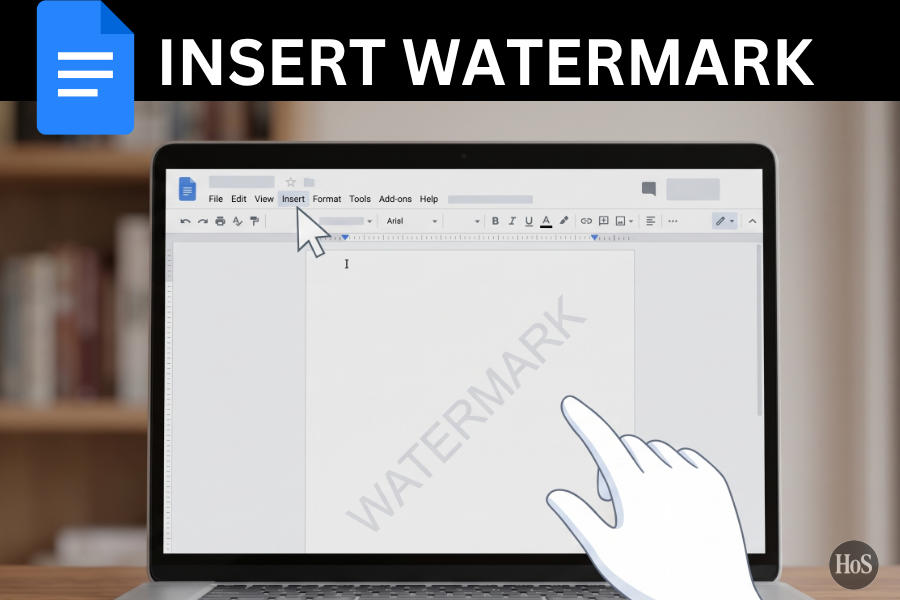
8 Steps to Add a Watermark in Google Docs
Learn how to add a watermark in Google Docs in just a few clicks. Follow these 8 simple steps to insert text or image watermarks to protect your documents.
Read More →
 AI Apps
 July 15, 2026
8 Steps to Make Clean Hyperlink Text Using Gemini AI
Learn how to make clean hyperlink text using Gemini AI. Follow these 8 steps to generate professional and clickable anchor text instead of raw URLs.
Read More →
 AI Apps
 July 12, 2026
10 Steps To Turn Your Lyrics Into MP3 Songs With Gemini AI
Learn how to turn your lyrics into MP3 songs with Gemini AI. Follow these simple steps to generate custom music tracks and download them easily.
Read More →
 AI Apps
 July 11, 2026
9 Steps to Build an Atari Breakout Game with One Gemini Prompt
Learn how to build a classic Atari Breakout game with just one Gemini prompt. Follow these 9 steps to generate a playable HTML5 browser game using AI.
Read More →
 Google Apps
 July 11, 2026
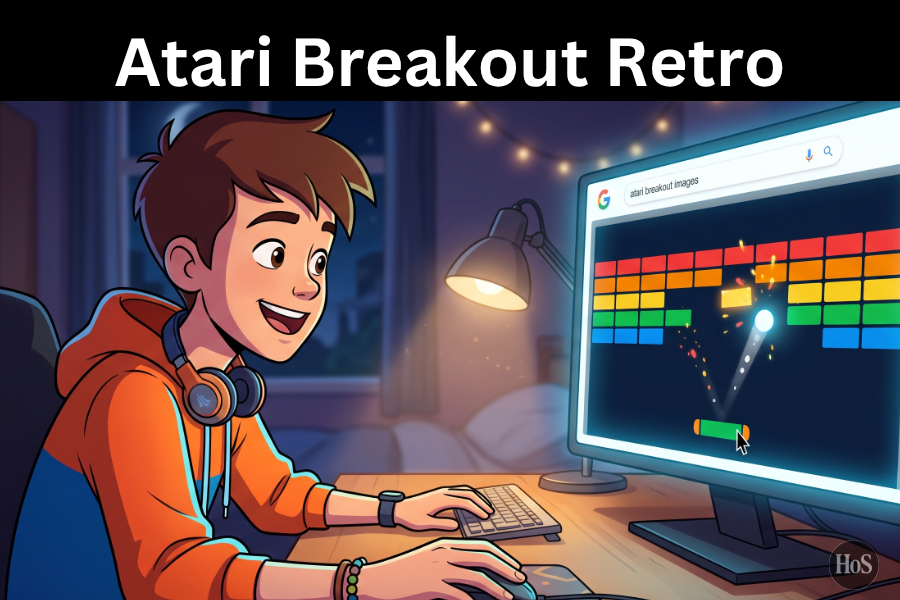
10 Steps To Unlock Atari Breakout Fun On Google Images
Learn how to play Atari Breakout on Google Images with this simple guide. Follow these easy steps to unlock the classic retro game Easter egg in your browser.
Read More →
 AI Apps
 July 10, 2026
10 Steps To Switch Dark And Light Themes In Gemini AI
Learn how to switch dark and light themes in Gemini AI. Follow these 10 simple steps to customize your web and mobile app appearance.
Read More →
 Tools Apps
 July 10, 2026
9 Steps To Unlock Secret Windows 11 Themes Like A Pro
Learn how to unlock secret Windows 11 themes like a pro. Follow these 9 simple steps to safely enable hidden themes and customize your desktop.
Read More →
 AI Apps
 July 9, 2026
10 Steps To Make Simple Clean 3D Text With Gemini AI
Learn how to make simple and clean 3D text with Gemini AI using effective prompts. A beginner-friendly guide to creating minimal 3D typography.
Read More →
 Video Players & Editors
 July 9, 2026
10 Steps To Create Simple 3D Text In Photoshop Without Getting Confused
Learn how to create simple 3D text in Photoshop without using complex 3D tools. Follow these easy stacked layer steps that work in CS4 and newer versions.
Read More →