
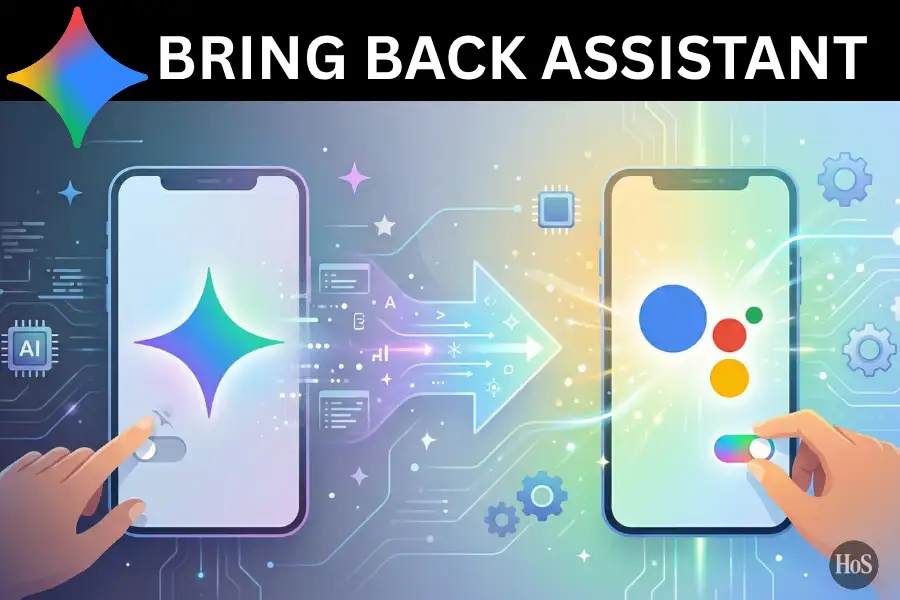
If you woke up one day and your Google Assistant was just… gone, replaced by Google Gemini without you asking for it, you’re not alone. Google quietly pushed Gemini as the default AI assistant on Android, and a lot of people weren’t happy about it. The switch can feel frustrating, especially if you rely on Assistant for smart home control, routines, or just quick voice commands that actually work. 😤
The good news is you can still switch back, at least for now. Google has been aggressively rolling out Gemini as the default on all Android devices, but there are still ways to put Google Assistant back in charge. In this post, I’ll walk you through every step, from changing the default assistant app to stopping Gemini from popping up when you press the power button.
Whether you’re on a Pixel, Samsung, or any other Android phone, these steps should work for most devices. Some menus might look slightly different depending on your Android version or phone brand, but the overall flow stays the same. Let’s get into it. 👇
Why Google Replaced Your Assistant with Gemini in the First Place
Google has been pushing Gemini hard as its big AI bet, and part of that strategy means getting it onto as many Android phones as possible. Gemini is built on Google’s large language model (LLM) technology, which makes it great for things like generating text, answering complex questions, and summarizing content. It’s a different kind of assistant from what most people are used to.
The problem is Gemini isn’t always great at the things Google Assistant excelled at, like controlling smart home devices, setting timers, managing routines, or even just understanding quick voice commands. For a lot of users, it feels like a downgrade for daily tasks. That’s a real pain point, and Google has acknowledged this by still keeping Google Assistant available as an option, at least for now.
It’s also worth knowing that Gemini comes with privacy trade-offs. When it’s active, it can access your Gmail, Google Calendar, Google Drive, and even third-party apps like WhatsApp. Your conversations may be stored and used to improve Google’s AI models. So switching back isn’t just about preference, for some people, it’s about keeping control over their data. 🔐
Steps to Disable Gemini and Switch Back to Google Assistant on Android
Here’s the fastest and most reliable way to get Google Assistant back as your default assistant. This method works through the Gemini app settings directly.
- Open the Gemini app on your Android phone.
- Tap your profile icon in the top-right corner of the screen.
- Select Settings from the menu that appears.
- Scroll down and tap Digital assistants from Google.
- Select Google Assistant from the list of options.
- Tap Switch on the confirmation prompt that pops up.
- Open your phone’s Settings app as a backup check.
- Go to Apps & notifications, then tap Default apps.
- Tap Digital assistant app and confirm it’s now set to Google Assistant.
- Restart your phone to make sure the change sticks. ✅
If you don’t see Gemini on your phone but still want to change the default assistant, you can go through the Google app instead. Open the Google app, tap your profile picture, go to Settings, then tap Google Assistant, and look for Digital Assistants from Google to make the switch.
How to Stop Gemini from Sneaking Back Through the Power Button
Even after switching back to Google Assistant, Gemini might still show up when you press and hold the power button on some Android phones. This happens because the power button action is set separately from the default assistant setting. It’s a sneaky move, but it’s easy to fix. 😅
Go to Settings, then search for “Press and hold power button” in the search bar at the top. Tap that option and change the assigned action away from Gemini. You can set it to Power Menu so it just shows the shutdown and restart options, or you can point it to Google Assistant if that option is available on your device.
This step matters a lot if you use the power button shortcut often. On some phones, especially newer Pixels and Samsung Galaxy devices, this setting lives under Settings > System > Gestures or Settings > Advanced Features. The exact path depends on your phone brand, but the setting exists on most modern Android versions. 📱
Conclusion
Switching back from Gemini to Google Assistant takes about two minutes once you know where to look. The key steps are changing the default assistant through the Gemini app settings and checking that your power button action isn’t still pointing to Gemini.
Keep in mind that Google is pushing Gemini as the long-term replacement for Assistant, so this might require re-checking your settings after major Android updates. But for now, Google Assistant is still alive and kicking, and you’re fully in charge of which one runs your phone. 🙌
FAQs
Can I completely uninstall Gemini from my Android phone?
On some Android devices, you can uninstall the Gemini app from the Play Store or from Settings > Apps. But on Pixel phones and some others, Gemini is baked into the Google app, so you can only disable it or switch away from it as the default assistant.
Will Google Assistant still work after I switch back?
Yes, Google Assistant works normally after switching back. You can still trigger it with “Hey Google,” through the power button, or by using the Assistant shortcut, just like before Gemini took over.
What if Google Assistant is not showing up as an option?
If Google Assistant doesn’t appear as a selectable option, make sure the Google app is updated through the Play Store. On some older devices, you may also need to have the standalone Google Assistant app installed.
Does switching back to Google Assistant affect Gemini’s other features?
No, you can still open and use the Gemini app manually for things like text generation or Q&A. Switching back just means Gemini is no longer your default voice assistant, it doesn’t delete or break the app.
Will my settings reset after an Android update?
Sometimes, yes. Major Android updates or Google app updates can reset your default assistant back to Gemini. It’s a good idea to check your default assistant settings after any big software update on your device. 🔄
Leave a Reply