
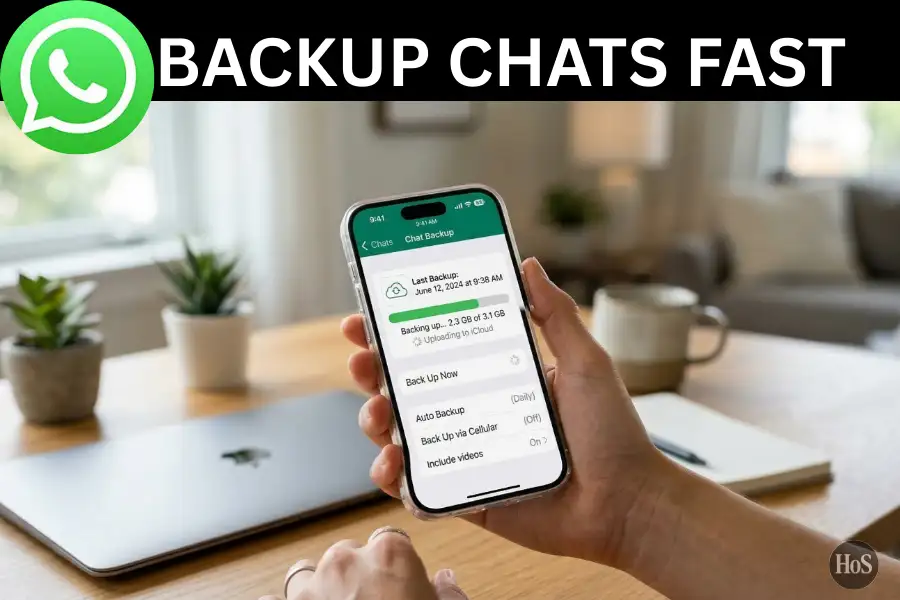
Losing your WhatsApp messages can feel like losing a piece of your life, especially when those chats carry memories, important files, or work conversations. 😩 I’ve been there before, switching phones and realizing all my old messages just vanished. It’s a situation that’s super easy to avoid, and that’s exactly what this guide is here for.
WhatsApp on iPhone stores your backup through iCloud, which means your messages, photos, and videos are saved safely in the cloud. 📲 The good news is that setting it up takes less than a minute if you know where to look. Whether you want your phone to back up automatically or you prefer to do it manually, both options are available right inside the app.
In this guide, I’ll walk you through the fastest ways to back up WhatsApp on your iPhone, from using iCloud to a couple of other options worth knowing. 👇 By the end, you’ll have your chats saved and protected without any stress.
Why WhatsApp Backup on iPhone Matters Before You Lose Everything
A lot of people skip the backup step until it’s too late. When you switch to a new iPhone, reset your phone, or accidentally delete the app, every single message disappears without a backup. This is especially painful when those chats contain personal photos, voice notes, or business conversations you can’t get back.
iCloud backup is the main method WhatsApp uses on iPhone, unlike Android, which uses Google Drive. Since iCloud is already built into every iPhone, it’s the most reliable and fastest option available. Your chats, media, and settings all get saved in one place, ready to restore whenever you need them.
One thing worth knowing is that iCloud only keeps one backup at a time and will overwrite the old one every time a new backup runs. So if your iCloud storage is almost full, the backup might fail silently without you realizing it. Always check your available iCloud storage before you get started. ☁️
How to Back Up WhatsApp on iPhone Using iCloud Step by Step
Here’s the fastest and most reliable way to get your WhatsApp chats backed up using iCloud. 🔄
- Make sure your iPhone is connected to Wi-Fi for a stable and faster backup process.
- Open the Settings app on your iPhone, tap your name at the top, go to iCloud, and check that iCloud Drive is turned on.
- Open WhatsApp and tap the Settings icon at the bottom-right corner of the screen.
- Tap Chats from the menu list.
- Tap Chat Backup to open the backup settings page.
- Tap Auto Backup and pick how often you want WhatsApp to back up automatically, like Daily, Weekly, or Monthly.
- Toggle on Include Videos if you want your video messages saved too (keep in mind this uses more storage space).
- Tap Back Up Now to start an immediate manual backup right away.
- Wait for the backup to finish, then check the date and size of the last successful backup on that same screen. ✅
- Head back to iCloud settings to confirm the backup file is stored there if you want to double-check everything.
Other Ways to Back Up WhatsApp on iPhone Besides iCloud
If iCloud storage is full or you just want a second backup somewhere else, you can back up your WhatsApp data through iTunes on Windows or Finder on a Mac. 💻 Just connect your iPhone to your computer, select your device, and click Back Up Now to save everything locally. This method saves all your iPhone data, including WhatsApp, directly to your computer’s hard drive.
There’s also an option to back up specific WhatsApp chats using the built-in Export Chat feature inside the app. Open any chat, tap the contact name at the top, scroll down to Export Chat, and choose whether to include media or not. The chat will be saved as a .txt or .zip file that you can upload manually to Google Drive, save to your Files app, or send via email. 📁
Keep in mind that neither of these methods gives you the same smooth, one-tap restore experience that iCloud does. They work better as a safety net for specific situations, like saving one important conversation or making a local backup when your internet is down. For everyday use, sticking with iCloud automatic backup is the simplest and most reliable way to keep your messages safe long-term. 🔒
Conclusion
Backing up WhatsApp on your iPhone is honestly one of the easiest things you can do, and it only takes a few taps to set it up the right way. 🙌 Once you turn on automatic backups, you don’t have to think about it again.
If you want to be extra safe, combine iCloud backup with the Export Chat feature for your most important conversations. That way, your memories and key messages stay protected no matter what happens to your phone. 📱
FAQs
How much iCloud storage do I need to back up WhatsApp on iPhone?
You need at least 2.5 times more free space than your current WhatsApp backup size. So if your backup is 1GB, you’ll need at least 2.5GB free in iCloud to run it successfully.
Can I back up WhatsApp on iPhone to Google Drive?
Not directly the way Android does. On iPhone, WhatsApp only supports iCloud for a full chat backup. You can use Export Chat to manually save specific chats to Google Drive, but that won’t work as a full restore-ready backup.
Does WhatsApp backup on iPhone include photos and videos?
Photos are included by default, but videos are optional. You can toggle on Include Videos inside the Chat Backup settings if you want them included too. 🎥
What happens if I skip the backup before switching to a new iPhone?
All your messages, photos, and media will be gone for good. WhatsApp has no way to recover chats that were never backed up, so always run a backup before switching or resetting your device.
How do I know if my WhatsApp backup on iPhone was successful?
Go to WhatsApp Settings then Chats then Chat Backup and you’ll see the exact date, time, and file size of the last completed backup right there on the screen. ✅
Leave a Reply