
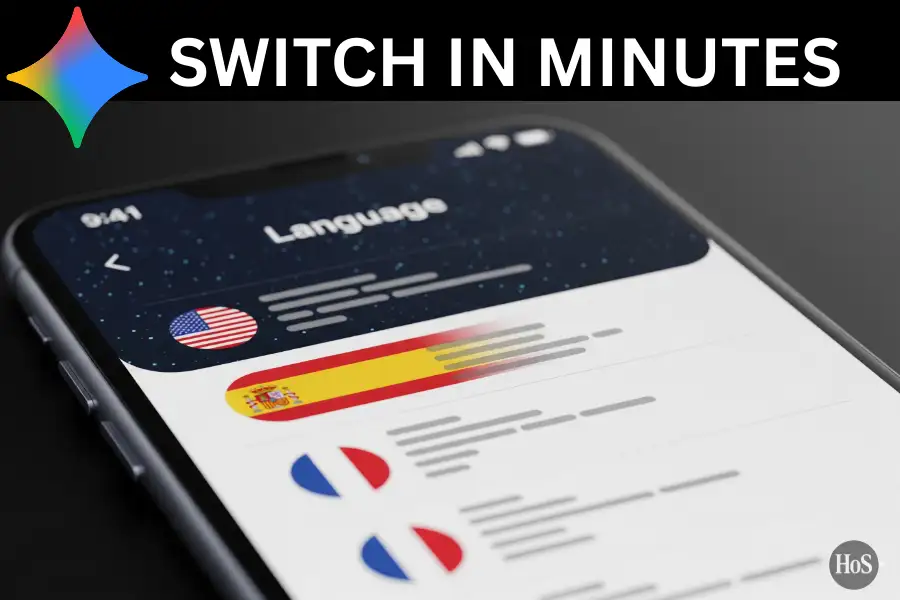
If you’ve ever opened the Gemini app and found yourself staring at a language you didn’t set, you’re not alone. 😅 Whether you accidentally switched it or you’re setting up the app fresh, the fix is super easy once you know where to look. A lot of people spend way too long scrolling through random menus when the answer is literally three taps away.
The Gemini app by Google supports over 40 languages, so you’ve got a lot of options to pick from. This isn’t just about the app menu text either. Changing the language also affects notifications, voice commands, and how the app recognizes what you say when you tap the mic button. I’ll walk you through exactly how to do it on Android, iPhone, and the web browser version too. 🌐
In this guide, you’ll get the full picture on what actually changes when you switch languages, a clear step-by-step walkthrough for Android, and a quick breakdown for iPhone and web users. No guessing, no going back and forth.
What the Gemini Language Setting Actually Controls
The language setting in the Gemini app does more than just swap out the menu text. When you switch languages, it updates the whole app interface, your push notifications, and the languages Gemini can recognize when you use the mic button in the chat field or trigger it with “Hey Google.” So if you’re switching from Bahasa Indonesia to English, expect the entire app experience to shift with it.
One thing worth knowing is that Gemini is smart about text responses even without touching this setting. If you just type a message in Español or Français, Gemini can read it and reply in that language no matter what your app language is set to. The language setting mostly matters for voice interaction and the visual interface. That said, some features like Gemini’s voice style setting aren’t available in every language, so setting your preferred one is still the better move.
There’s also a secondary language option for speech, which is a newer feature. 🎙️ This lets you talk to Gemini in two languages, which is really handy if you switch between English and another language in daily life. You can set both, and Gemini will pick up on either one during voice commands without you having to dig into settings again.
Steps to Change Language on the Gemini App for Android
This is the fastest way to do it on Android, straight from inside the app with no extra detours. 📱
- Open the Gemini app on your Android phone or tablet.
- Tap your profile picture or initial at the top right corner of the screen.
- Tap “Settings” from the account menu that pops up.
- Scroll down and tap “Languages.”
- Tap the language currently shown to open the full list of supported options.
- Scroll through the list and tap your preferred language.
- Confirm your selection if the app prompts you with a dialog box.
- Close the Gemini app completely by swiping it away from your recent apps.
- Reopen the Gemini app so the language change takes full effect.
- Optionally, head back to “Languages” and tap “Second language (speech only)” to add a secondary voice language if you’re multilingual.
How to Change Gemini Language on iPhone and the Web Browser
On iPhone or iPad, things work a little differently. The Gemini app on iOS follows your device’s primary language, so there’s no dedicated language option inside the app itself. To change it, open your iPhone’s Settings app, go to “General,” tap “Language & Region,” then tap “Add Language” and choose your preferred language as the primary one. Once that’s done, the Gemini app will automatically match it. 🍎
For the web version on a computer, it’s even simpler. The Gemini web app at gemini.google.com just uses whatever language your browser or operating system is set to. So if your browser is in 日本語, Gemini’s web interface will follow along automatically without needing any changes inside the app itself.
Both platforms are more passive compared to Android, but the upside is that any language change you make at the device or browser level applies to Gemini right away. Just make sure the language you want is on Google’s official supported list, because not every language gets full feature support, especially for voice commands and some assistant features. 🔍
Conclusion
Changing the language on the Gemini app is genuinely fast once you know the right path. On Android, it’s just a few taps inside the app settings. On iPhone and web, it simply follows your device or browser language, so updating those does the job.
The key thing to remember is that this setting shapes your whole Gemini experience, from the interface to voice commands. Pick the language that matches how you actually use the app and the whole thing feels a lot more natural. 👌
FAQs
Can I use Gemini in a language different from my phone’s default language?
Yes, on Android you can set a different language directly inside the Gemini app without changing your whole phone’s language. On iPhone, you’ll need to update the device’s primary language first since the app follows that setting.
Does changing the Gemini language affect how it responds to my messages?
The language setting mainly changes the app interface, notifications, and voice command recognition. When you just type a message, Gemini can still understand and reply in most supported languages no matter what this setting is on.
What if my language doesn’t show up in the Gemini app?
Check Google’s official supported language list for the Gemini mobile app. Not all languages are available in every region, and some may have limited feature support compared to major languages like English or Spanish.
Can I set two languages on the Gemini app at once?
On Android, yes. You can set one main language and one secondary language for speech only. This lets Gemini recognize voice commands in both languages during the same session, which is great for bilingual users.
Will changing Gemini’s language also change Google Assistant’s language?
Yes, if the language you pick is supported by both Gemini and Google Assistant, the two settings will sync up automatically. Google confirms they stay in sync when a compatible language is selected.
Leave a Reply